How to document a workflow in Jira
By Phil KlingUpdated June 2026How we research this
To document a workflow in Jira, record someone performing the real process, issue triage, a board transition, or a bug resolution, then generate a step-by-step SOP and a process map from it. Jira workflows and screens are customized per project, so a generic guide rarely matches a given team’s board. Ledgerium records the real interaction in the browser and produces the SOP, process map, and a workflow intelligence report, so the documentation matches your project and how the team actually moves work.
Key takeaways
- Jira status names and transitions are configured per project, so a default-scheme guide references steps a given team does not use.
- Automation rules in Jira move issues between statuses in ways users never see, which from-memory documentation misses.
- A Jira workflow written against a default scheme drifts immediately because each project is configured differently.
- Recording triage, board transitions, and bug resolution on the team’s actual board captures the real statuses and screens.
- Ledgerium produces the SOP, process map, and a report flagging where Jira issues stall from a single recording.
Common workflows in Jira
- Issue intake and triage
- Board and status transitions
- Bug investigation and resolution
- Release and handoff steps
Why documenting them is hard
- Per-project configuration means status names and screens differ
- Automation rules move issues in ways users do not see
- Work spans Jira plus code, chat, and other tools
The old way
A lead writes the workflow from memory against a default scheme. Because each project is configured differently, the guide references statuses and transitions the team does not use, and it drifts immediately.
With Ledgerium
Record the real process on the team’s actual board. Ledgerium captures the real transitions and screens and generates the SOP, the process map, and a report that highlights where issues stall.
The SOP Ledgerium generates
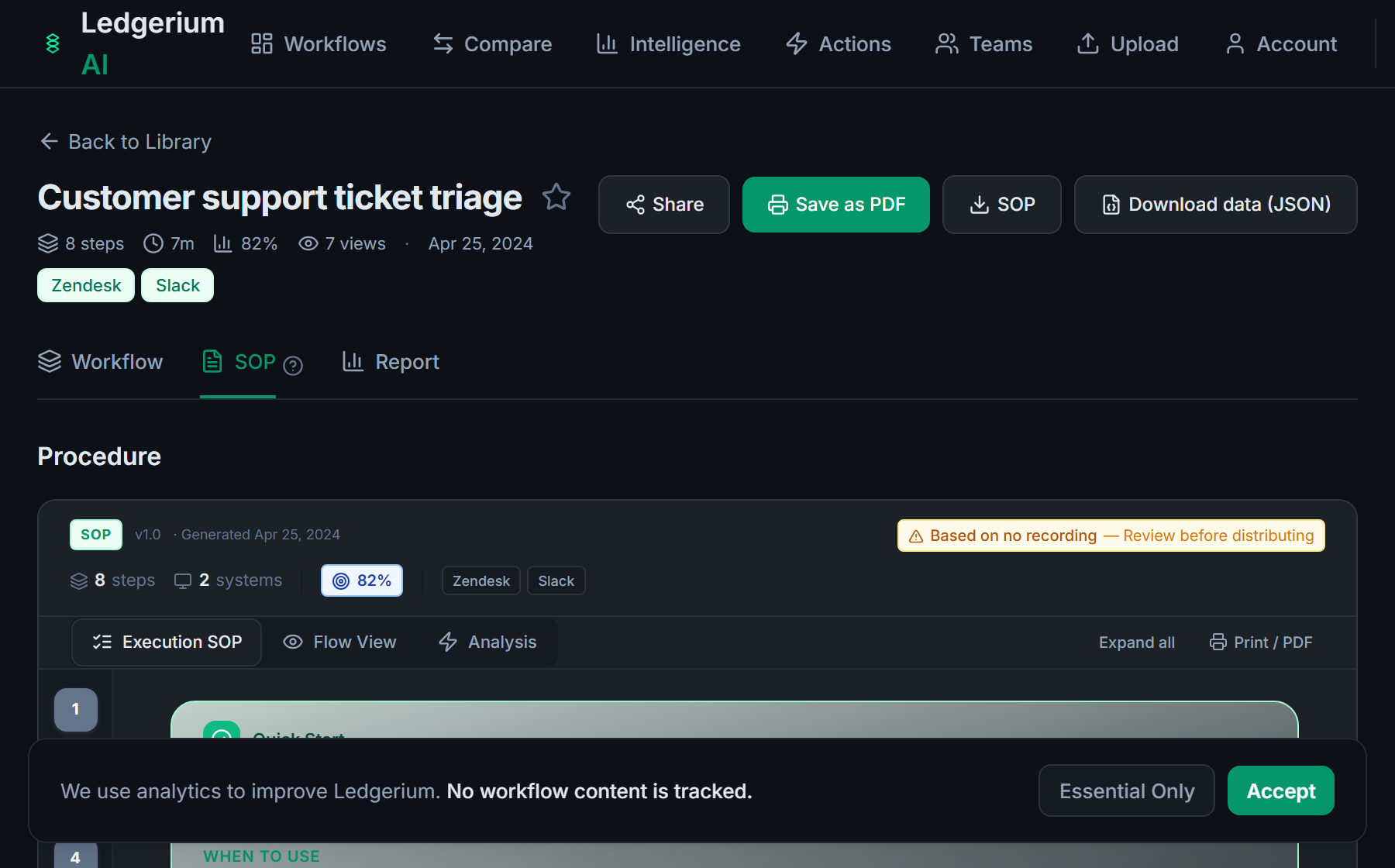
Common mistakes
- Documenting a default scheme instead of the team’s configured board
- Skipping the transitions automation performs behind the scenes
- Stopping at the Jira boundary when the work continues in other tools
How Ledgerium captures this
Jira workflows are configured per project, so the same status name means different things across teams, and Ledgerium records the real transitions a team performs so the SOP reflects how that board actually moves work.
1. Install the extension
Add the Ledgerium recorder to Chrome. No screenshots and no keystrokes are ever captured.
2. Record the real workflow
Perform the process once. Ledgerium captures the structured steps, timing, and system context.
3. Get the output
Receive an SOP, a process map, and a workflow intelligence report generated from the real work.
Worth knowing
Ledgerium captures the browser-based steps in Jira. Automation rules and integrations that run in the background are not observed directly; document their effect from the user-visible result.
Frequently asked questions
- Record a real run of the process on the team’s board, then generate the SOP and process map from the recording. The result reflects the actual statuses, transitions, and screens that project uses.
- Jira workflows and screens are configured per project, so status names and transitions vary. A guide written against a default scheme references things your team may not use. Recording the real process avoids that.
- Yes. A single recording captures the steps across Jira and the other browser-based tools in the process, so the SOP reflects the full flow rather than just the board.
- It captures what the user does and sees in the browser. Automation rules and integrations are not observed directly, so document their effect from the user-visible result.
- No. This is an independent guide. Jira is a trademark of its owner, and Ledgerium is not affiliated with or endorsed by Jira or Atlassian.
Free includes SOPs and process maps for 5 workflows a month. The intelligence layer — bottleneck detection, automation scoring, variation analysis — is on paid plans. See what's included on each plan.
Not ready to sign up? Try the live demo — no login required.
Document a Jira workflow from real work
Record the real process in your own account and generate an SOP, a process map, and an intelligence report that matches what your team actually sees.
Free plan includes 5 documented workflows per month. No screenshots ever captured.
Or Install the extension first.
Jira is a trademark of its respective owner. Ledgerium AI is not affiliated with or endorsed by Jira.