How to document a workflow in Microsoft Dynamics 365
By Phil KlingUpdated July 2026How we research this
To document a workflow in Microsoft Dynamics 365, record someone performing the real process — a sales order, a vendor payment, or a customer case — then generate a step-by-step SOP and a process map from it. Dynamics 365 spans several apps and is customized per deployment, so a generic guide rarely matches the forms a team uses. Ledgerium records the real interaction in the browser, including the steps that cross the ERP and CRM apps, and produces the SOP, process map, and a workflow intelligence report tied to your deployment.
Key takeaways
- Dynamics 365 is a suite — Finance, Sales, Customer Service, and Business Central — so a process is often documented against one app while the real work crosses several.
- Each Dynamics 365 deployment is customized with its own forms, fields, and business rules, so a generic module guide references screens a given team does not have.
- Model-driven app security roles change what each user can see and do, so the same order looks different to a sales rep and a finance clerk.
- Recording a sales order, a vendor payment, or a customer case as the user works captures the real forms and the hops between apps in one pass.
- Ledgerium generates the SOP, process map, and a report showing where the Dynamics 365 process waits or reworks from a single recorded run.
Common workflows in Microsoft Dynamics 365
- Sales order entry and fulfillment
- Vendor payment and financial posting
- Customer case handling in Customer Service
- Quote-to-cash across Sales and Finance
Why documenting them is hard
- A process crosses several Dynamics 365 apps, so single-module guides stop short
- Per-deployment customization means forms and fields differ across companies
- Security roles change what each user sees, so one written procedure does not fit all
The old way
An analyst documents the steps from one Dynamics 365 app, usually the one they know best. The process actually spans Sales, Finance, and Customer Service, so the guide describes part of the flow and leaves the hand-offs between apps undocumented.
With Ledgerium
Record the real process as the user works it across the Dynamics 365 apps. Ledgerium captures the forms, field entries, and the hops between Sales, Finance, and Customer Service, then generates the SOP, the process map, and a report that highlights where the flow waits or reworks.
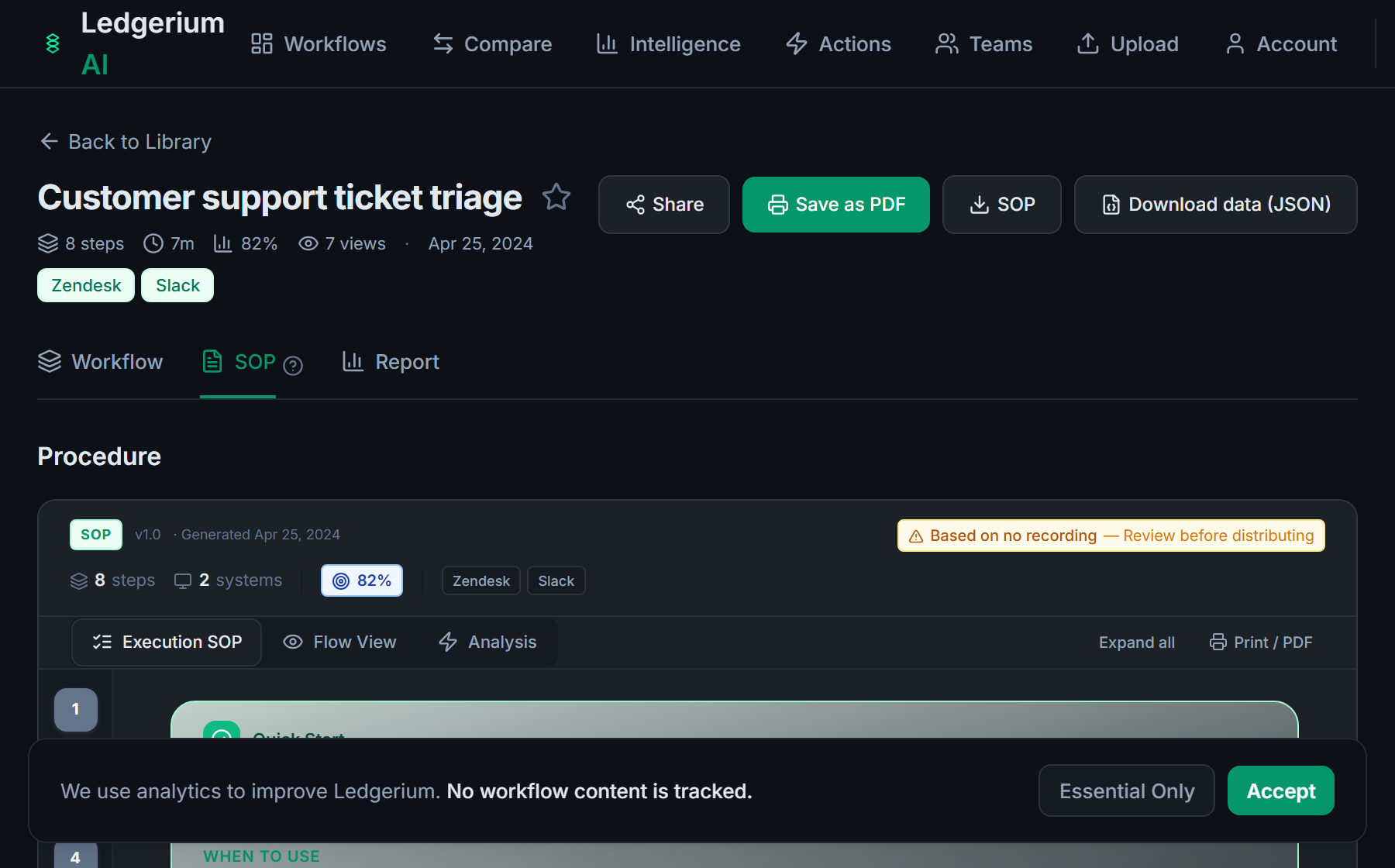
The SOP Ledgerium generates
Common mistakes
- Documenting one Dynamics 365 app when the process spans several
- Writing against a standard form instead of the deployment’s customized screens
- Leaving the hand-offs between the ERP and CRM apps out of the steps
How Ledgerium captures this
Dynamics 365 is a suite of apps customized per deployment, and one process often hops between Finance, Sales, and Customer Service, so Ledgerium records the real cross-app path to produce an SOP that matches the deployment rather than a single-module guide.
1. Install the extension
Add the Ledgerium recorder to Chrome. No screenshots and no keystrokes are ever captured.
2. Record the real workflow
Perform the process once. Ledgerium captures the structured steps, timing, and system context.
3. Get the output
Receive an SOP, a process map, and a workflow intelligence report generated from the real work.
Worth knowing
Ledgerium captures the browser-based steps across the Dynamics 365 apps. Power Automate flows, Dataverse plug-ins, and business rules that run server-side are not observed directly; document their effect from the user-visible result.
Frequently asked questions
- Record a real run as the user works it across the Dynamics 365 apps, then generate the SOP and process map from the recording. Because it captures the actual forms and the hops between apps, the result matches your deployment rather than a single-module example.
- Dynamics 365 is a suite of customized apps, and one process crosses several of them. A guide scoped to a single module misses the hand-offs and references forms your deployment may not have. Recording the real path captures the whole flow.
- Yes. A single recording follows the user across Sales, Finance, Customer Service, and the other browser-based systems in the process, so the SOP reflects the cross-app flow rather than one app in isolation.
- It captures what the user does and sees in the browser. Power Automate flows, Dataverse plug-ins, and server-side business rules are not observed directly, so document their effect from the user-visible result.
- No. This is an independent guide. Microsoft Dynamics 365 is a trademark of its owner, and Ledgerium is not affiliated with or endorsed by Microsoft.
Free includes SOPs and process maps for 5 workflows a month. The intelligence layer — bottleneck detection, automation scoring, variation analysis — is on paid plans. See what's included on each plan.
Not ready to sign up? Try the live demo — no login required.
Document a Microsoft Dynamics 365 workflow from real work
Record the real process in your own account and generate an SOP, a process map, and an intelligence report that matches what your team actually sees.
Free plan includes 5 documented workflows per month. No screenshots ever captured.
Or Install the extension first.
Microsoft Dynamics 365 is a trademark of its respective owner. Ledgerium AI is not affiliated with or endorsed by Microsoft Dynamics 365.