How to document an expense reporting workflow
By Phil KlingUpdated June 2026How we research this
To document an expense reporting workflow, record the real process from capturing a receipt to reimbursement, then generate a step-by-step SOP and a process map from it. Expense reporting frustrates people because the rules and approval routing are rarely written down clearly. Ledgerium records the real submission and approval in the browser, captures the policy checks and routing, and generates the SOP, the process map, and a report that shows where reports get rejected and reworked.
Key takeaways
- Expense reporting frustration comes from policy rules and approval routing that are rarely written where employees actually submit.
- Most expense delay is the rejection and resubmission loop, not the first submission, which a happy-path SOP never reveals.
- Recording one real submission captures the policy checks and the routing that the written policy usually leaves vague.
- Ledgerium measures rejection rate and resubmission count and flags approvers who consistently exceed the target approval time.
Who uses this workflow
Employees submitting expenses, managers and finance approvers, and the finance lead who owns the policy. Auditors review it when testing spend controls.
Systems involved: Expense or accounting system, Email, Card or banking portal.
The old way
The policy lives in a document nobody reads and the routing is tribal knowledge. Employees guess, get rejected, and resubmit, and the real rules only surface through trial and error.
With Ledgerium
Record one real expense submission and approval. Ledgerium captures the policy checks and routing and generates the SOP, the process map, and a report that highlights where reports get rejected.
Sample workflow steps
- 1
Capture receipts and details
Collect receipts and enter the expense details and categories.
- 2
Create the report
Group the expenses into a report and attach the supporting receipts.
- 3
Submit for approval
Submit the report so it routes to the correct approver.
- 4
Approve or reject
The approver checks policy and either approves or returns the report.
- 5
Reimburse
Approved expenses are posted and paid in the next reimbursement run.
What Ledgerium generates from this
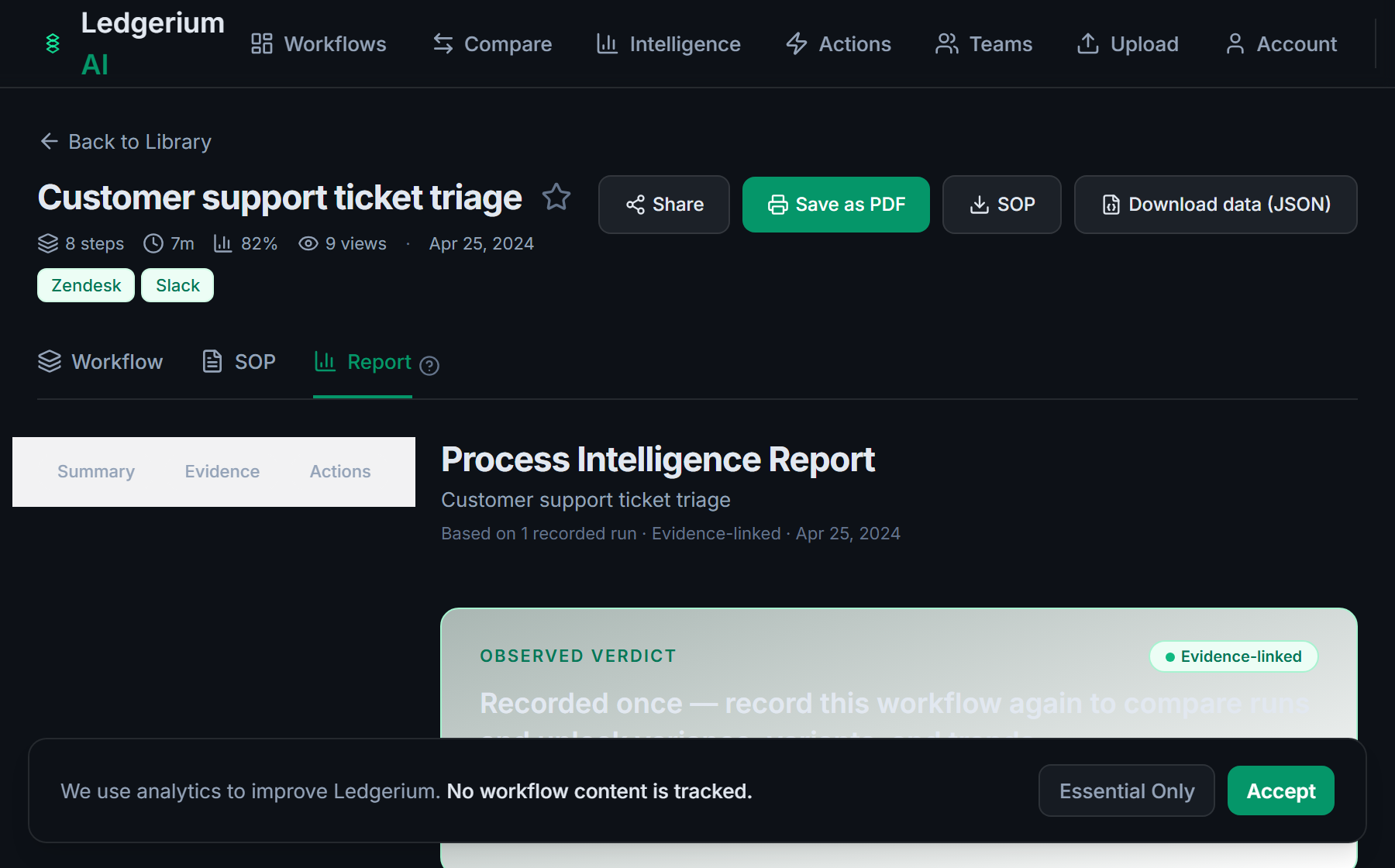
Metrics Ledgerium can reveal
- Time to reimburse: Submission to payment, split into approval and processing time.
- Rejection rate: Share of reports returned for correction before approval.
- Resubmission count: How many times a typical report is resubmitted.
Common mistakes
- Documenting the submission but not the rejection and resubmission loop
- Leaving the policy limits and required receipts undocumented
- Not capturing how often reports bounce back and why
AI and automation opportunities
- Auto-categorize expenses and flag policy exceptions before submission
- Pre-check receipts against policy so fewer reports get rejected
- Detect approvers who consistently exceed target approval time
How Ledgerium captures this
Ledgerium captures an expense reporting workflow by recording the real path from receipt capture through report creation and the policy-checked approval to reimbursement, so the report shows how often expense reports bounce back and at which policy check.
1. Install the extension
Add the Ledgerium recorder to Chrome. No screenshots and no keystrokes are ever captured.
2. Record the real workflow
Perform the process once. Ledgerium captures the structured steps, timing, and system context.
3. Get the output
Receive an SOP, a process map, and a workflow intelligence report generated from the real work.
Worth knowing
Receipts captured only on a mobile app outside the browser are not recorded directly. Ledgerium captures the browser-based submission and approval steps.
Frequently asked questions
- Typically: capture receipts and details, create the report, submit for approval, approve or reject, then reimburse. The rejection-and-resubmission loop is where most of the delay lives.
- Record a real submission and approval, then generate the SOP and process map from it. This captures the policy checks and routing that the written policy usually leaves vague.
- Because the policy and required receipts are rarely documented where employees submit. Capturing a real submission makes the actual rules visible, which reduces guesswork and rework.
- Yes. It records the routing as it happens in the browser, so the SOP and process map show the real approval path, including the policy checks, rather than an idealized one.
- Common candidates are auto-categorizing expenses, pre-checking receipts against policy, and flagging slow approvers. Ledgerium scores these from the recorded process.
Related to this
Not ready to sign up? Try the live demo — no login required.
Capture this workflow once
Record the real process and turn it into an SOP, a process map, and an AI opportunity report, generated from how the work actually happens.
Free plan includes 5 documented workflows per month. No screenshots ever captured.
Or Install the extension first.