How to document a Zendesk ticket resolution workflow
By Phil KlingUpdated June 2026How we research this
To document a Zendesk ticket resolution workflow, record an agent resolving a real ticket from arrival to close, then generate a step-by-step SOP and a process map from it. Support work varies a lot between agents, which is why a written-from-memory guide rarely matches how tickets are actually handled. Ledgerium records the real resolution in the browser, including the lookups in other tools, and generates the SOP, the process map, and a report that shows where resolution time is spent.
Key takeaways
- Zendesk ticket resolution varies widely between agents because the investigation steps, unlike the canned replies, are rarely documented.
- Most resolution time goes to investigation and lookups in other tools, not to writing the reply itself.
- Macros capture replies but not how an agent diagnoses an issue, which is the part recording a real resolution makes visible.
- Ledgerium captures steps across every browser tool an agent touches and scores AI candidates like suggesting category and priority.
Who uses this workflow
Support agents, team leads who own resolution time, and the support manager standardizing how tickets are handled. Quality reviewers use it to coach consistency.
Systems involved: Zendesk, Knowledge base, Internal admin or product tools.
The old way
Each agent resolves tickets their own way, and the macro library captures only canned replies, not the investigation steps. New agents copy whoever sits near them, so quality varies.
With Ledgerium
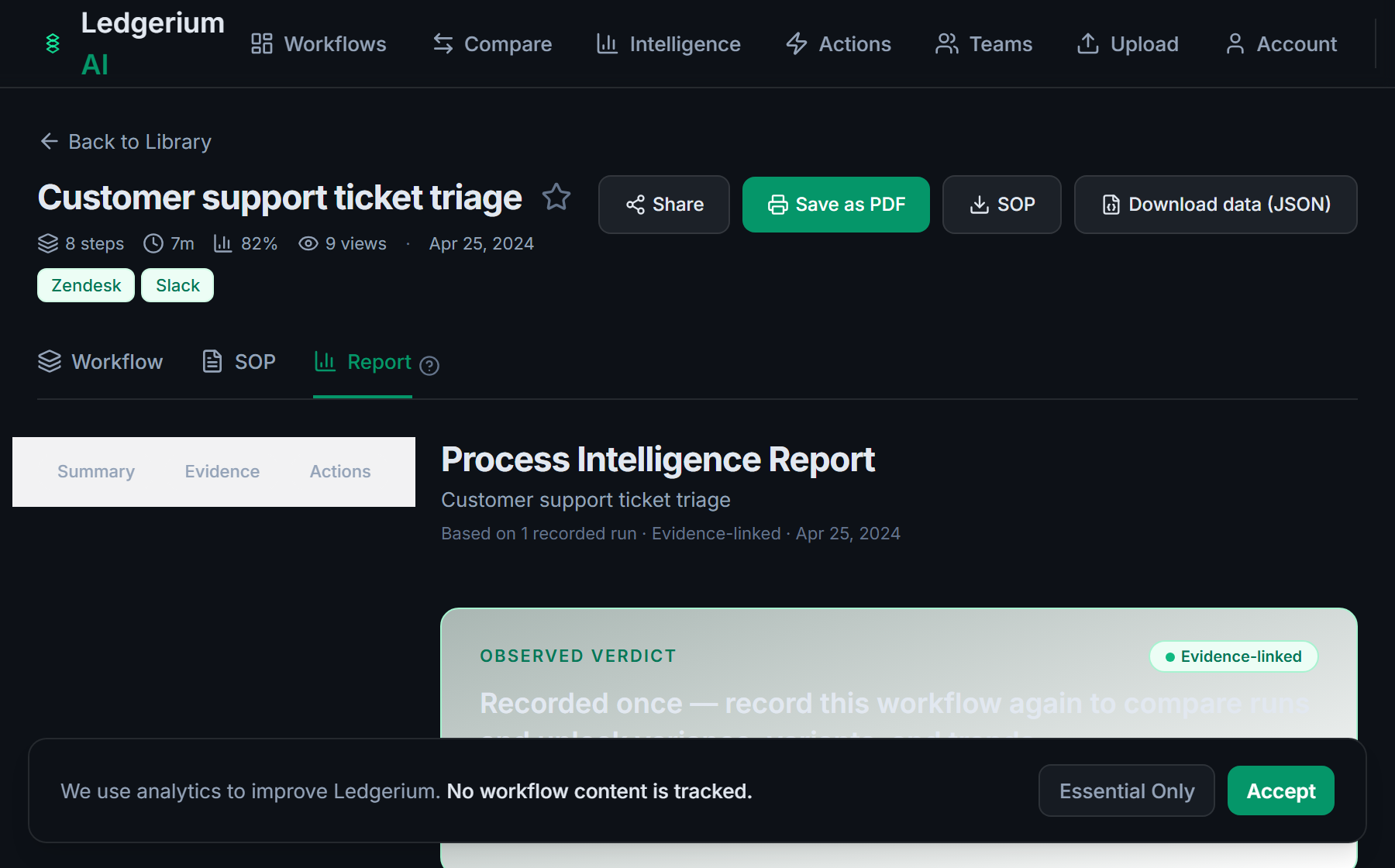
Record one real resolution. Ledgerium captures the triage, the lookups, and the response in order and generates the SOP, the process map, and a report that highlights where resolution time goes.
Sample workflow steps
- 1
Receive and read the ticket
The ticket arrives in Zendesk and the agent reads the request and context.
- 2
Triage and categorize
Set priority, category, and assignee based on the issue type.
- 3
Investigate
Look up the account and reproduce or diagnose the issue in the relevant tools.
- 4
Respond and resolve
Send the resolution, apply any fix, and confirm the steps taken.
- 5
Confirm and close
Verify the customer is satisfied and close the ticket with the right tags.
What Ledgerium generates from this
Metrics Ledgerium can reveal
- Resolution time: Ticket arrival to close, split into investigation and response.
- Steps per resolution: How many steps and tools a typical resolution requires.
- Agent variance: How much the resolution path varies between agents.
Common mistakes
- Documenting only the canned reply and not the investigation steps
- Leaving triage and categorization rules undocumented, so routing varies
- Not capturing where investigation time is actually spent
AI and automation opportunities
- Suggest the category and priority from the ticket content for agent review
- Draft a first-response based on similar resolved tickets
- Surface the knowledge-base article that matches the issue automatically
How Ledgerium captures this
Ledgerium captures a Zendesk ticket resolution workflow by recording an agent from ticket arrival through triage and the lookups in other tools to close, so the report separates investigation time from the time spent typing the response.
1. Install the extension
Add the Ledgerium recorder to Chrome. No screenshots and no keystrokes are ever captured.
2. Record the real workflow
Perform the process once. Ledgerium captures the structured steps, timing, and system context.
3. Get the output
Receive an SOP, a process map, and a workflow intelligence report generated from the real work.
Worth knowing
Conversations that happen over phone or chat outside the browser are not captured. Ledgerium records the browser-based resolution steps; offline context needs a note.
Frequently asked questions
- Typically: receive and read the ticket, triage and categorize it, investigate, respond and resolve, then confirm and close. The investigation step is where most of the time and variation live.
- Record one real resolution while an agent works normally, then generate the SOP and process map from it. There is no separate writing step, so it does not add to the agent’s workload.
- Because the investigation steps are usually undocumented. Macros capture replies, not how agents diagnose issues. Recording a real resolution makes the diagnosis steps visible and repeatable.
- Yes. A single recording captures the steps across each browser-based tool an agent uses during a resolution, so the SOP reflects the full cross-tool flow, not just Zendesk.
- Common candidates are suggesting category and priority, drafting first responses from similar tickets, and surfacing the right knowledge-base article. Ledgerium scores these from the recorded resolution.
Related to this
Not ready to sign up? Try the live demo — no login required.
Capture this workflow once
Record the real process and turn it into an SOP, a process map, and an AI opportunity report, generated from how the work actually happens.
Free plan includes 5 documented workflows per month. No screenshots ever captured.
Or Install the extension first.